
How to build a complete monitoring stack with Docker Compose

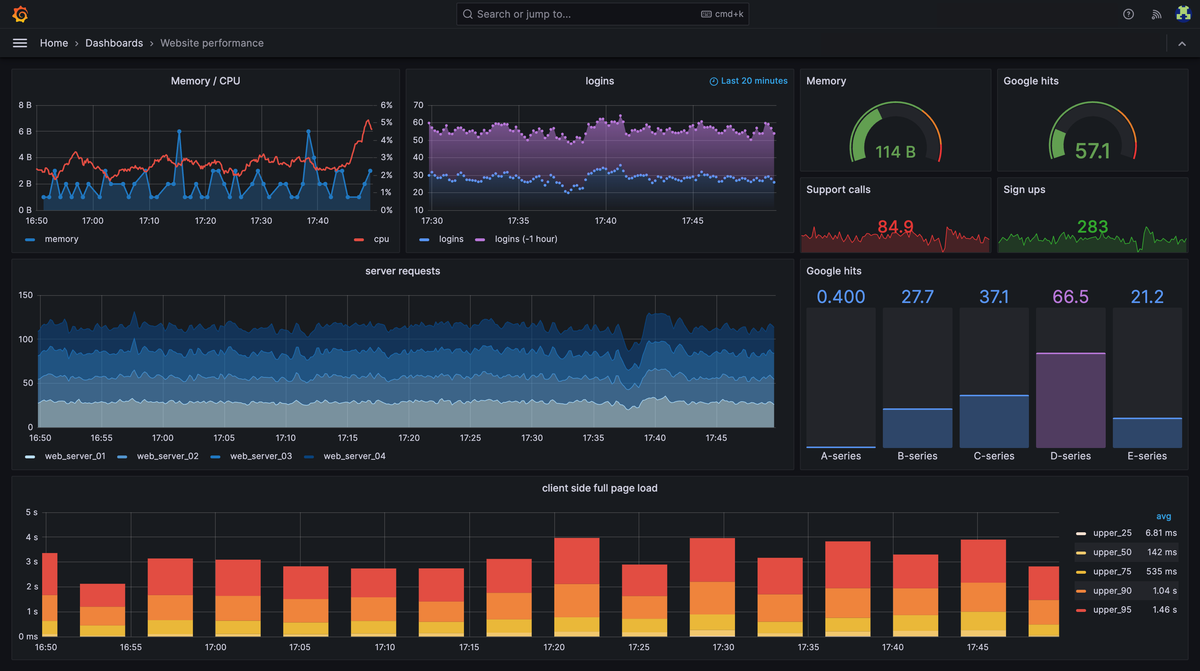
Managing multiple containers manually becomes a nightmare as your infrastructure grows. When you need Prometheus collecting metrics, Grafana visualizing data, databases storing information, and various exporters gathering system stats, coordinating these services individually leads to configuration drift, networking issues, and deployment inconsistencies.
Docker Compose solves this orchestration challenge by defining your entire monitoring stack in a single YAML file. Instead of running separate docker run commands with complex networking and volume configurations, you describe your services once and deploy them together with a single command.
What is Docker Compose and Why Use It for Monitoring Stacks?
Docker Compose is a tool for defining and running multi-container Docker applications. For monitoring infrastructure, this means you can specify how Prometheus, Grafana, databases, and exporters work together, including their networking, storage, and dependencies.
Consider a typical monitoring scenario: you need Prometheus to scrape metrics from Node Exporter, store data in a time-series database, and have Grafana visualize everything. Running these individually requires:
docker run -d --name prometheus -p 9090:9090 prom/prometheus
docker run -d --name grafana -p 3000:3000 grafana/grafana
docker run -d --name node-exporter -p 9100:9100 prom/node-exporter
This approach creates several problems: containers can't easily communicate, configuration becomes splitted across multiple commands, and reproducing the setup on another system requires documenting every parameter.
Docker Compose eliminates this complexity. Your entire monitoring stack becomes a single docker-compose.yml file that anyone can deploy with docker compose up. Services automatically discover each other, share networks, and maintain consistent configurations across environments.
The benefits extend beyond convenience. Compose handles service dependencies, ensuring your database starts before Prometheus tries to connect. It creates isolated networks, preventing conflicts with other applications. Most importantly, it makes your monitoring infrastructure reproducible and version-controllable.
Use Docker Compose when you need multiple containers working together on a single host. For larger deployments requiring high availability and automatic scaling across multiple servers, consider Kubernetes. But for most monitoring scenarios, from development environments to production deployments on dedicated servers, Compose provides the right balance of simplicity and power.
Installing and Setting Up Docker Compose
Modern Docker installations include Compose by default. Check if you have it installed:
docker compose versionYou should see output like Docker Compose version v2.21.0. If you see "command not found," you're either using an older Docker version or need to install Compose separately.
For Ubuntu/Debian systems, update Docker to get Compose included:
sudo apt update && sudo apt install docker-ce docker-ce-cli containerd.io docker-compose-pluginOn CentOS/RHEL, use:
sudo yum install docker-ce docker-ce-cli containerd.io docker-compose-pluginEnsure your user can run Docker commands without sudo:
sudo usermod -aG docker $USERLog out and back in for the group change to take effect. Test with a simple multi-container setup:
mkdir compose-test && cd compose-test
cat > docker-compose.yml << EOF
version: '3.8'
services:
  web:
    image: nginx:alpine
    ports:
      - "8080:80"
  redis:
    image: redis:alpine
EOF

docker compose up -d
docker compose ps
docker compose down
If both services start successfully, your Compose installation is working correctly.
Docker Compose File Structure and Core Concepts
A Docker Compose file uses YAML syntax to define your application's services, networks, and volumes. Understanding the structure prevents common configuration errors and helps you build complex deployments.
The basic structure follows this pattern:
version: '3.8'

services:
  service-name:
    image: image-name
    ports:
      - "host-port:container-port"
    environment:
      - VARIABLE=value
    volumes:
      - host-path:container-path

networks:
  network-name:
    driver: bridge

volumes:
  volume-name:
    driver: local
The version field specifies the Compose file format. Use '3.8' or later for modern features and compatibility. Each service under services becomes a container when you run docker compose up.
Critical service configuration options include:
image: Specifies the Docker image to usebuild: Builds an image from a Dockerfile instead of pulling oneports: Maps host ports to container ports for external accessenvironment: Sets environment variables inside the containervolumes: Mounts host directories or named volumes into containersdepends_on: Controls startup order (though not readiness)
Handle dependencies carefully. While depends_on ensures one service starts before another, it doesn't wait for the service to be ready. For databases, implement health checks:
services:
  database:
    image: postgres:13
    healthcheck:
      test: ["CMD-SHELL", "pg_isready -U postgres"]
      interval: 30s
      timeout: 10s
      retries: 3

  app:
    image: myapp
    depends_on:
      database:
        condition: service_healthy
Use environment variables for configuration that changes between environments. Create a .env file in the same directory as your docker-compose.yml:
# .env file
POSTGRES_PASSWORD=secure_password_here
GRAFANA_VERSION=9.5.0
Reference these variables in your Compose file:
services:
  grafana:
    image: grafana/grafana:${GRAFANA_VERSION}
    environment:
      - GF_DATABASE_PASSWORD=${POSTGRES_PASSWORD}
Validate your configuration before deployment:
docker compose configThis command parses your YAML, substitutes variables, and shows the final configuration. It catches syntax errors and missing variable definitions before you attempt to start services.
Building a Complete Monitoring Stack
Let's build a production-ready monitoring stack with Prometheus, Grafana, Node Exporter, and PostgreSQL. This example demonstrates real-world Compose usage with proper networking, persistence, and configuration management.
Create the project structure:
mkdir monitoring-stack && cd monitoring-stack
mkdir -p config/prometheus config/grafana data/prometheus data/grafana data/postgres
First, create the Prometheus configuration file:
cat > config/prometheus/prometheus.yml << 'EOF'
global:
  scrape_interval: 15s
  evaluation_interval: 15s

rule_files:
  - "alert_rules.yml"

scrape_configs:
  - job_name: 'prometheus'
    static_configs:
      - targets: ['localhost:9090']

  - job_name: 'node-exporter'
    static_configs:
      - targets: ['node-exporter:9100']

  - job_name: 'grafana'
    static_configs:
      - targets: ['grafana:3000']

alerting:
  alertmanagers:
    - static_configs:
        - targets: []
EOF
Create a basic alert rule:
cat > config/prometheus/alert_rules.yml << 'EOF'
groups:
  - name: system_alerts
    rules:
      - alert: HighCPUUsage
        expr: 100 - (avg by(instance) (irate(node_cpu_seconds_total{mode="idle"}[5m])) * 100) > 80
        for: 5m
        labels:
          severity: warning
        annotations:
          summary: "High CPU usage detected on {{ $labels.instance }}"
EOF
Set up the environment variables:
cat > .env << 'EOF'
POSTGRES_DB=monitoring
POSTGRES_USER=monitoring
POSTGRES_PASSWORD=secure_monitoring_password_2023
GRAFANA_VERSION=10.1.0
PROMETHEUS_VERSION=v2.47.0
NODE_EXPORTER_VERSION=v1.6.1
POSTGRES_VERSION=15-alpine
EOF
Now create the main Docker Compose file (change GF_SECURITY_ADMIN_PASSWORD with your desired password):
cat > docker-compose.yml << 'EOF'
version: '3.8'

services:
  postgres:
    image: postgres:${POSTGRES_VERSION}
    container_name: monitoring-postgres
    environment:
      POSTGRES_DB: ${POSTGRES_DB}
      POSTGRES_USER: ${POSTGRES_USER}
      POSTGRES_PASSWORD: ${POSTGRES_PASSWORD}
    volumes:
      - postgres_data:/var/lib/postgresql/data
      - ./config/postgres:/docker-entrypoint-initdb.d
    networks:
      - monitoring
    healthcheck:
      test: ["CMD-SHELL", "pg_isready -U ${POSTGRES_USER} -d ${POSTGRES_DB}"]
      interval: 30s
      timeout: 10s
      retries: 3
    restart: unless-stopped

  prometheus:
    image: prom/prometheus:${PROMETHEUS_VERSION}
    container_name: monitoring-prometheus
    command:
      - '--config.file=/etc/prometheus/prometheus.yml'
      - '--storage.tsdb.path=/prometheus'
      - '--web.console.libraries=/etc/prometheus/console_libraries'
      - '--web.console.templates=/etc/prometheus/consoles'
      - '--web.enable-lifecycle'
      - '--storage.tsdb.retention.time=30d'
    ports:
      - "9090:9090"
    volumes:
      - ./config/prometheus:/etc/prometheus
      - prometheus_data:/prometheus
    networks:
      - monitoring
    depends_on:
      postgres:
        condition: service_healthy
    restart: unless-stopped

  grafana:
    image: grafana/grafana:${GRAFANA_VERSION}
    container_name: monitoring-grafana
    environment:
      - GF_SECURITY_ADMIN_PASSWORD=change_me_please
      - GF_DATABASE_TYPE=postgres
      - GF_DATABASE_HOST=postgres:5432
      - GF_DATABASE_NAME=${POSTGRES_DB}
      - GF_DATABASE_USER=${POSTGRES_USER}
      - GF_DATABASE_PASSWORD=${POSTGRES_PASSWORD}
      - GF_INSTALL_PLUGINS=grafana-clock-panel,grafana-simple-json-datasource
    ports:
      - "3000:3000"
    volumes:
      - grafana_data:/var/lib/grafana
      - ./config/grafana:/etc/grafana/provisioning
    networks:
      - monitoring
    depends_on:
      postgres:
        condition: service_healthy
    restart: unless-stopped

  node-exporter:
    image: prom/node-exporter:${NODE_EXPORTER_VERSION}
    container_name: monitoring-node-exporter
    command:
      - '--path.procfs=/host/proc'
      - '--path.rootfs=/rootfs'
      - '--path.sysfs=/host/sys'
      - '--collector.filesystem.mount-points-exclude=^/(sys|proc|dev|host|etc)($$|/)'
    ports:
      - "9100:9100"
    volumes:
      - /proc:/host/proc:ro
      - /sys:/host/sys:ro
      - /:/rootfs:ro
    networks:
      - monitoring
    restart: unless-stopped

networks:
  monitoring:
    driver: bridge
    ipam:
      config:
        - subnet: 172.20.0.0/16

volumes:
  postgres_data:
    driver: local
  prometheus_data:
    driver: local
  grafana_data:
    driver: local
EOF
This configuration creates a complete monitoring ecosystem. PostgreSQL provides persistent storage for Grafana's configuration and dashboards. Prometheus scrapes metrics from Node Exporter and itself. Grafana connects to PostgreSQL for its database and can query Prometheus for metrics visualization.
The custom network ensures all services can communicate using their service names as hostnames. Volume mounts preserve data across container restarts, while health checks ensure proper startup ordering.
Deploy the stack:
docker compose up -dVerify all services are running:
docker compose psYou should see all four services with "Up" status. Access Grafana at http://localhost:3000 (admin and the password you set (or change_me_please) and Prometheus at http://localhost:9090.
Essential Commands for Operations
Lifecycle Management:
Start all services in detached mode:
docker compose up -dStart specific services:
docker compose up -d prometheus grafanaStop all services while preserving data:
docker compose stopStop and remove containers, networks (but keep volumes):
docker compose downRestart services after configuration changes:
docker compose restart prometheusMonitoring and Debugging:
Check service status:
docker compose psView logs from all services:
docker compose logs -fView logs from specific service:
docker compose logs -f --tail=100 prometheusExecute commands inside running containers:
docker compose exec prometheus promtool query instant 'up'Monitor resource usage:
docker compose topConfiguration Management:
Validate and view final configuration:
docker compose configPull latest images without starting services:
docker compose pullRebuild services that use custom Dockerfiles:
docker compose build --no-cacheForce recreate containers even if configuration hasn't changed:
docker compose up -d --force-recreateData Management:
Remove everything including volumes (destructive):
docker compose down -vScale services for load testing:
docker compose up -d --scale node-exporter=3Use these commands regularly to maintain your monitoring infrastructure. The logs command becomes especially valuable when troubleshooting service startup issues or investigating performance problems.
Production-Ready Configuration and Security
Let's configure our stack with proper security, resource management, and operational considerations.
Security Hardening:
Never run containers as root when possible. Create a security-focused override file:
cat > docker-compose.prod.yml << 'EOF'
version: '3.8'

services:
  grafana:
    user: "472:472"  # grafana user
    environment:
      - GF_SECURITY_ADMIN_PASSWORD_FILE=/run/secrets/grafana_admin_password
      - GF_DATABASE_PASSWORD_FILE=/run/secrets/postgres_password
    secrets:
      - grafana_admin_password
      - postgres_password

  postgres:
    environment:
      POSTGRES_PASSWORD_FILE: /run/secrets/postgres_password
    secrets:
      - postgres_password

secrets:
  grafana_admin_password:
    file: ./secrets/grafana_admin_password.txt
  postgres_password:
    file: ./secrets/postgres_password.txt
EOF
Create the secrets directory and files:
mkdir -p secrets
echo "super_secure_grafana_password_$(date +%s)" > secrets/grafana_admin_password.txt
echo "ultra_secure_postgres_password_$(date +%s)" > secrets/postgres_password.txt
chmod 600 secrets/*.txt
Resource Management:
Add resource limits and health checks to prevent resource exhaustion:
cat > docker-compose.resources.yml << 'EOF'
version: '3.8'

services:
  prometheus:
    deploy:
      resources:
        limits:
          cpus: '2.0'
          memory: 4G
        reservations:
          cpus: '1.0'
          memory: 2G
    healthcheck:
      test: ["CMD", "wget", "--quiet", "--tries=1", "--spider", "http://localhost:9090/-/healthy"]
      interval: 30s
      timeout: 10s
      retries: 3
      start_period: 60s

  grafana:
    deploy:
      resources:
        limits:
          cpus: '1.0'
          memory: 1G
        reservations:
          cpus: '0.5'
          memory: 512M
    healthcheck:
      test: ["CMD-SHELL", "curl -f http://localhost:3000/api/health || exit 1"]
      interval: 30s
      timeout: 10s
      retries: 3

  postgres:
    deploy:
      resources:
        limits:
          cpus: '1.0'
          memory: 2G
        reservations:
          cpus: '0.5'
          memory: 1G
    command: postgres -c max_connections=200 -c shared_buffers=256MB
EOF
Environment-Specific Configuration:
Use override files for different environments. Deploy to production with:
docker compose -f docker-compose.yml -f docker-compose.prod.yml -f docker-compose.resources.yml up -dCreate a production environment file:
cat > .env.prod << 'EOF'
POSTGRES_DB=monitoring_prod
POSTGRES_USER=monitoring_prod
GRAFANA_VERSION=10.1.0
PROMETHEUS_VERSION=v2.47.0
NODE_EXPORTER_VERSION=v1.6.1
POSTGRES_VERSION=15-alpine

# Production-specific settings
COMPOSE_PROJECT_NAME=monitoring-prod
COMPOSE_FILE=docker-compose.yml:docker-compose.prod.yml:docker-compose.resources.yml
EOF
Backup Strategy:
Implement automated backups for your monitoring data:
#!/bin/bash
# backup-monitoring.sh
BACKUP_DIR="/backup/monitoring/$(date +%Y-%m-%d_%H-%M-%S)"
mkdir -p "$BACKUP_DIR"

# Backup Grafana dashboards and settings
docker compose exec -T postgres pg_dump -U monitoring_prod monitoring_prod > "$BACKUP_DIR/grafana.sql"

# Backup Prometheus data (requires stopping Prometheus)
docker compose stop prometheus
tar czf "$BACKUP_DIR/prometheus-data.tar.gz" -C data prometheus
docker compose start prometheus

# Backup configuration files
cp -r config "$BACKUP_DIR/"
cp docker-compose*.yml .env* "$BACKUP_DIR/"

echo "Backup completed: $BACKUP_DIR"
Set up this script to run daily via cron for consistent backup coverage.
Troubleshooting issues
Identify and resolve the most frequent problems you'll encounter with multi-container monitoring deployments.
Service Startup Failures:
When services fail to start, check logs immediately:
docker compose logs prometheusCommon issues include:
- Port conflicts: Another service using port 9090
- Permission errors: Volume mount permissions incorrect
- Configuration errors: Invalid YAML in prometheus.yml
Fix port conflicts by changing the host port:
ports:
  - "9091:9090"  # Use 9091 instead of 9090
Resolve permission issues:
sudo chown -R 65534:65534 data/prometheus  # Prometheus runs as nobody
sudo chown -R 472:472 data/grafana        # Grafana user ID
Network Connectivity Problems:
Services can't reach each other when network configuration is incorrect. Test connectivity:
docker compose exec grafana ping prometheusIf ping fails, verify all services use the same network:
docker compose exec grafana nslookup prometheusCheck network configuration:
docker network ls
docker network inspect monitoring-stack_monitoring
Volume and Data Issues:
Data loss often results from incorrect volume configurations. List volumes:
docker volume ls
docker volume inspect monitoring-stack_prometheus_data
If data disappears after docker compose down, ensure you're using named volumes, not bind mounts for persistent data.
Performance Problems:
Slow startup or high resource usage indicates configuration issues. Monitor resource consumption:
docker statsCheck if containers are hitting memory limits:
docker compose exec prometheus cat /sys/fs/cgroup/memory/memory.usage_in_bytes
docker compose exec prometheus cat /sys/fs/cgroup/memory/memory.limit_in_bytes
Increase retention settings or reduce scrape frequency if Prometheus consumes too much storage:
command:
  - '--storage.tsdb.retention.time=15d'  # Reduce from 30d
  - '--storage.tsdb.retention.size=10GB'
Configuration Validation:
Always validate configurations before deploying:
# Test Prometheus config
docker run --rm -v $(pwd)/config/prometheus:/etc/prometheus prom/prometheus:v2.47.0 promtool check config /etc/prometheus/prometheus.yml

# Test Docker Compose syntax
docker compose config --quiet
Next Steps and Advanced Considerations
You now have a solid foundation for deploying multi-container monitoring applications with Docker Compose. Your monitoring stack demonstrates key concepts: service orchestration, networking, data persistence, and operational management.
To expand your monitoring capabilities, consider integrating additional exporters for specific applications, setting up Alertmanager for notification routing, or implementing log aggregation with the ELK stack. The same Compose principles apply to any multi-container application.
For production environments handling high traffic or requiring high availability, evaluate when to migrate from Docker Compose to Kubernetes. Compose excels for single-host deployments, development environments, and moderate production workloads. Kubernetes becomes necessary when you need automatic scaling, multi-host orchestration, or advanced deployment strategies.
Remember that monitoring infrastructure requires ongoing maintenance. Regularly update images, backup configurations and data, monitor resource usage, and test disaster recovery procedures. Tools like fivenines.io can help monitor your Docker Compose applications and alert you to issues before they impact your monitoring capabilities.
The monitoring stack you've built provides a template for other multi-container applications. Apply the same patterns, proper networking, data persistence, security hardening, and operational procedures to any application requiring multiple coordinated services.


