How to monitor a Linux server


To monitor a Linux server, start with CPU and load, available memory, filesystem space and inodes, disk I/O, network activity and service availability. Use terminal tools to diagnose the host now, then add ongoing collection, history and tested notifications for the period when nobody is connected over SSH.
This guide follows that path: read the basic metrics correctly, try bounded diagnostic scripts, and choose how to operate continuing monitoring. For a product shortlist, use our Linux server monitoring tools comparison.
 FiveNines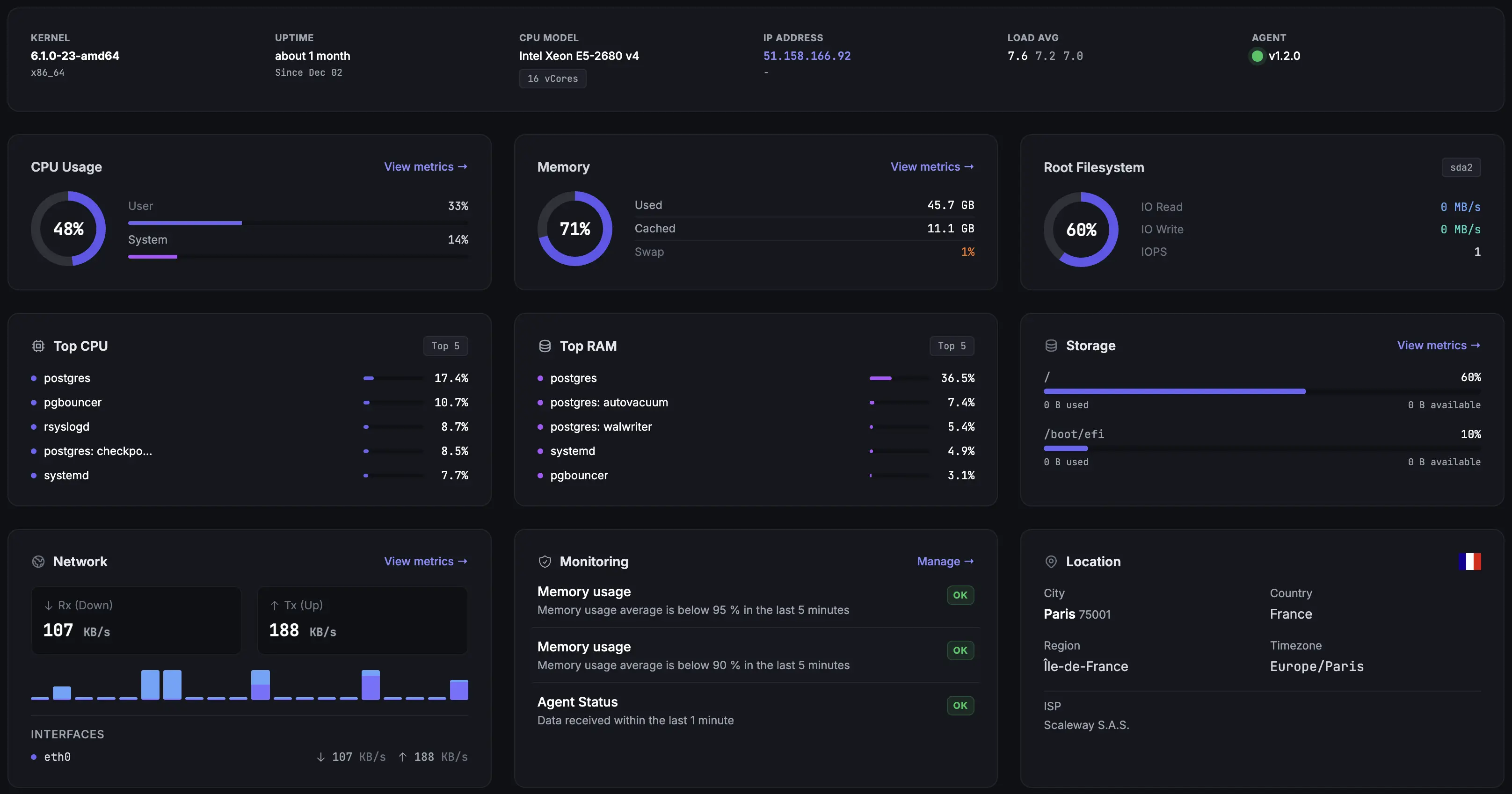
Quick Linux Server Monitoring Checklist
- Inspect current load, CPU and processes with
uptimeandtop. - Read available memory with
free -h; check swap activity withvmstat. - Check space and inodes with
df -handdf -i; inspect disk latency withiostat. - Inspect sockets with
ss, then test service availability from outside the host. - Add ongoing collection, retained history, missing-data checks and tested notifications.
What to monitor ?
The core metrics taxonomy covers four fundamental areas:
- CPU: Utilization percentage, load averages, process counts
- Memory: Available RAM, swap usage, buffer/cache utilization
- Disk: Space usage, I/O operations per second, read/write latency
- Network: Bandwidth utilization, packet loss, connection counts
If your servers have dedicated GPUs for AI training, video transcoding, or HPC workloads, standard system metrics won't cover GPU utilization, VRAM, temperature, or power draw. See our dedicated guide on GPU monitoring on Linux for the full setup.
Choose collection intervals around the incidents you need to detect and the overhead you can accept. Interactive sampling can be faster than ongoing fleet collection. First record a baseline during normal and peak workload; more frequent samples do not fix an inappropriate alert threshold.
Use this quick assessment to determine your current monitoring maturity:
- Do you know when systems fail? (Reactive)
- Do you receive alerts before users notice problems? (Proactive)
- Can you predict capacity needs months in advance? (Predictive)
Commands Every Admin Should Master
Common Linux packages provide these commands, but minimal images may omit them. On Debian or Ubuntu, top, free and vmstat come from procps, ss from iproute2, and iostat from sysstat. Install htop separately if needed; package names differ on other distributions.
System Overview with top and htop
The top command provides real-time system statistics. Run it to see CPU usage, memory consumption, and active processes:
top -d 5The -d 5 option requests a five-second refresh. Linux load averages count runnable tasks and tasks in uninterruptible sleep, often waiting for I/O. They are not CPU percentages: load equal to your logical CPU count does not prove 100% CPU utilization. Compare it with CPU time, the run queue and disk latency. See the load-average reference.
htop offers a more user-friendly interface with color coding and mouse support:
htopMemory Analysis with free and vmstat
Check memory usage with human-readable output:
free -hUse the available estimate to judge how much memory new applications can use without swapping. Low free memory alone can be normal because Linux uses RAM for caches. Check swap activity and application behavior before diagnosing memory pressure.
For deeper memory analysis, use vmstat:
vmstat 2 5The first CPU and I/O report summarizes time since boot; later reports cover each two-second interval. Memory fields describe current state. Sustained si/so activity can indicate swapping, but swap allocated without ongoing activity is not the same as current pressure.
Disk Performance with iostat and df
Monitor disk I/O performance:
iostat -x -y 2 5
Here -y skips the initial since-boot report. Compare latency (await), queue depth, throughput and application response time. There is no universal 80% %util bottleneck threshold: devices with parallel I/O, including modern SSDs and RAID, need more context. See the iostat field definitions.
For a thorough walkthrough of disk health checks, SMART diagnostics, and I/O analysis, see our guide on disk monitoring on Linux.
Check disk space usage:
df -h
df -i
Network Monitoring with ss and netstat
Modern Linux systems use ss instead of the older netstat:
ss -tulnThis lists local TCP and UDP listening sockets. A listening socket does not prove that a firewall permits access or that the application responds correctly. Test the actual endpoint from a client or external probe as well. The ss reference explains socket filters.
Command Chaining for Quick Diagnostics
Combine commands for rapid system assessment:
# Read-only local checks; these do not prove external HTTP availability.
uptime
free -h
df -h /
df -i /
ss -ltn 'sport = :80'
Read filesystem space and inode use separately. The socket filter matches TCP port 80 specifically; an empty result just means there is no matching listener in this network namespace.
Monitoring Scripts Example
A scheduled script can collect a signal, but reliable alerting also needs delivery, duplicate suppression, failure handling and recovery behavior. The examples below print diagnostics and exit with a status; they do not claim to be a complete notification service.
Disk Space Monitoring Script
This example checks one filesystem, defaulting to the root filesystem. It uses GNU df and reports invalid or missing readings as an error instead of a healthy result. Set the threshold for your workload:
#!/usr/bin/env bash
set -euo pipefail
export LC_ALL=C
threshold=${THRESHOLD:-85}
mountpoint=${1:-/}
if [[ ! "$threshold" =~ ^[0-9]+$ ]]; then
  echo "THRESHOLD must be an integer from 1 to 100" >&2; exit 2
fi
if (( ${#threshold} > 3 )); then
  echo "THRESHOLD must be an integer from 1 to 100" >&2; exit 2
fi
threshold=$((10#$threshold))
if (( threshold < 1 || threshold > 100 )); then
  echo "THRESHOLD must be an integer from 1 to 100" >&2; exit 2
fi
if ! reading=$(df --output=pcent -- "$mountpoint"); then
  echo "Cannot read filesystem: $mountpoint" >&2; exit 2
fi
usage=$(printf '%s\n' "$reading" | awk 'NR == 2 {gsub(/[%[:space:]]/, ""); print}')
if [[ ! "$usage" =~ ^[0-9]+$ ]] || (( ${#usage} > 6 )); then
  echo "Invalid filesystem reading" >&2; exit 2
fi
usage=$((10#$usage))
printf '%s filesystem=%s used=%s%% threshold=%s%%\n' "$(date -u +%FT%TZ)" "$mountpoint" "$usage" "$threshold"
if (( usage >= threshold )); then exit 1; fi
exit 0
Save it as disk_monitor.sh, then run it against a filesystem you intend to monitor. Exit 0 means below threshold, 1 means threshold reached, and 2 means invalid input or collection failure:
chmod +x disk_monitor.sh
./disk_monitor.sh /
CPU Load Monitoring
Load is a queueing signal, not a CPU utilization measurement. Capture it with the logical CPU count and short interval samples; inspect workload and I/O before setting a load alert:
date -u +%FT%TZ
cat /proc/loadavg
getconf _NPROCESSORS_ONLN
vmstat 2 5
Automating with Cron
A user crontab can run the filesystem check every ten minutes. Use an absolute path and ensure its output is collected by your scheduler or monitoring system:
crontab -eAdd this line:
*/10 * * * * /absolute/path/disk_monitor.sh /
Cron does not automatically convert an exit code into a delivered incident. Its mail behavior depends on the host mail setup. Add and test an external receiver, deduplication, recovery notifications and a check for missed script runs before relying on it while you are away.
Prometheus and Grafana for an enterprise grade monitoring
Prometheus stores time series; node_exporter supplies Linux host metrics; Grafana can visualize them. Alert rules and an Alertmanager route are additional configuration. A running graph alone is not an operational alerting setup.
If you prefer a containerized setup, see our walkthrough on building a monitoring stack with Docker Compose.
Install compatible binaries first
Use the official Prometheus downloads for your Linux architecture and follow the node_exporter guide. Verify the release checksums. The following local example assumes prometheus, promtool and node_exporter are installed on your PATH. It does not install services or survive a reboot.
Create prometheus.yml in a working directory. Both processes below run on the same host:
global:
  scrape_interval: 15s
scrape_configs:
  - job_name: linux_node
    static_configs:
      - targets: ['127.0.0.1:9100']
In one terminal, start node_exporter bound to loopback. In a second terminal in the working directory, validate the configuration and start Prometheus:
# Terminal 1
node_exporter --web.listen-address=127.0.0.1:9100

# Terminal 2
promtool check config prometheus.yml
prometheus --config.file=prometheus.yml \
  --storage.tsdb.path=./prometheus-data \
  --web.listen-address=127.0.0.1:9090
In another terminal, check the endpoints. Use the Prometheus expression browser to query up{job="linux_node"}; 1 means the scrape succeeded, not that the application is healthy:
curl --fail http://127.0.0.1:9100/metrics
curl --fail http://127.0.0.1:9090/-/ready
For access from your workstation, keep the endpoints private and use an SSH tunnel to your server. In the command below, replace your-server with your host:
ssh -L 9090:127.0.0.1:9090 your-server
Then open http://127.0.0.1:9090 on your workstation. For a fleet, use controlled private connectivity between the central collector and exporters, with authentication or TLS as appropriate. Loopback targets in containers refer to that container, not automatically to the host.
Add Grafana and notifications deliberately
Follow the maintained Grafana Debian/Ubuntu installation instructions for the current repository and signing-key procedure. A Grafana service on the same host can use http://127.0.0.1:9090 as its Prometheus data source; adapt networking for containers or separate hosts.
Before production, configure service supervision, access control, storage retention and Alertmanager routing. Test a failed scrape, an application failure and notification recovery. Measure CPU, RAM and disk use under your own series count and query workload; this guide does not provide a benchmark.
Log Analysis and Security Monitoring
Logs help investigate events that host counters cannot explain. Their usefulness depends on what the application records, retention and access. Reviewing logs does not by itself prevent a security incident.
Mastering journalctl
On a systemd host, journalctl reads the journal visible to your account. Use an account with the required access and select the relevant service and time window:
# Follow new journal entries
journalctl -f
# Follow the actual service name used by this host
journalctl -u nginx -f
# Recent errors with timestamps
journalctl --since "1 hour ago" -p err -o short-iso --no-pager
Security Event Monitoring Script
Inspect SSH authentication records for a bounded interval. Service names differ: Debian/Ubuntu commonly use ssh.service, while other distributions use sshd.service. Missing records can mean the wrong unit, permissions or retention, not an absence of attacks:
# Inspect the available unit, then use its name in the journal query.
systemctl status ssh.service sshd.service --no-pager
journalctl -u ssh.service --since "15 minutes ago" -o short-iso --no-pager
Log Correlation Techniques
Use consistent timestamps and compare stored metrics with the relevant log interval. A shell loop that prints timestamps does not retrieve historical CPU data. For example, inspect an application journal around an incident, then open the same interval in your monitoring backend:
journalctl -u nginx --since "1 hour ago" -o short-iso --no-pager
Container and Modern Infrastructure Monitoring
Compare container resource use with host capacity, container limits and service health. An exited one-shot job may be normal; a running container can still serve failing requests.
Docker Container Monitoring with cAdvisor
cAdvisor exports container resource metrics. Its mounts and privileges depend on the runtime and host. Use the maintained cAdvisor deployment instructions and choose a compatible release; avoid exposing the metrics endpoint publicly.
Pin a compatible cAdvisor release, verify the deployment requirements and review access to host files and devices before adding it to a production host.
Keep the endpoint on a private interface or behind appropriate access controls, then verify that the collected labels identify the containers you actually need.
For GPU-accelerated containers, you'll also need to monitor GPU allocation and VRAM usage per container. Our GPU monitoring guide covers Docker and Kubernetes GPU monitoring with DCGM exporter.
Docker Stats and Logs
Use Docker's built-in monitoring commands:
# Current per-container resource use
docker stats --no-stream
# Replace container_name with your container
docker logs --since 15m --timestamps container_name
# Read explicit limit fields
docker inspect --format '{{.HostConfig.Memory}} {{.HostConfig.NanoCpus}}' container_name
Container state and resource checks
docker ps -a --format '{{.Names}}	{{.Status}}'
docker stats --no-stream --format '{{.Name}}	{{.CPUPerc}}	{{.MemUsage}}'
Kubernetes Monitoring Basics
The kubectl top command requires a working resource metrics API, commonly supplied by Metrics Server. These commands inspect current state and do not create retention or alerts. See the Kubernetes resource metrics pipeline:
# Check node status
kubectl get nodes

# Monitor pod resource usage
kubectl top pods --all-namespaces

# Check for failed pods
kubectl get pods --all-namespaces --field-selector=status.phase=Failed
Nagios and Zabbix Implementation
Nagios Core and Zabbix are options for centralized host and service monitoring. Select them according to your existing checks, infrastructure and team skills, rather than an arbitrary server-count threshold.
Nagios Core
Follow the Nagios Core installation resources for your OS and supported release. Install the required check plugins, configure hosts and services, verify the configuration, and set notification contacts and time periods.
Zabbix
Use the Zabbix platform selector to choose the release, distribution, database and frontend combination. Follow its complete schema, server and frontend instructions. An agent package alone does not deploy a working central server, and a sample database password should never be reused.
Validate the monitoring path
- Add one representative Linux host and verify incoming timestamps and values.
- Configure a relevant service check, not only host resource metrics.
- Test failure, notification delivery and recovery using a controlled test.
- Document storage, backup, upgrades and the owner of the monitoring system.
Compare hosting, maintenance, retention and support costs with your requirements. No universal downtime cost or guaranteed return on investment applies to every Linux service.
Monitoring Best Practices and Alert Management
An alert should identify an actionable condition, an owner and a response. Validate the signal and delivery path before treating the check as operational coverage.
Well-configured server alerting and notifications catch real problems without drowning your team in noise.
Alert Threshold Tuning
Use historical behavior and the consequence of resource exhaustion to choose thresholds. For example:
- Filesystem space: combine percentage used with absolute free space and the expected growth rate.
- Memory: compare available memory, swap activity and application errors.
- CPU and latency: require an appropriate duration and correlate with user-facing performance.
Where your monitoring tool supports it, use separate trigger and recovery conditions or a recovery window to reduce flapping. Verify the implemented behavior; a suggested 5% gap is not a universal default.
SLA and SLO Definition
Define clear service level objectives:
Use our SLA uptime calculator to see exactly how much downtime each target allows.
# Illustrative objectives, not guarantees
Availability: 99.9% over a 30-day month = 43.2 minutes downtime budget
API latency: 95th percentile below 200 ms over the chosen reporting window
Database latency: 99th percentile below 1 second for the defined query population
Escalation Procedures
Implement tiered alerting:
- Level 1 (0-15 minutes): On-call engineer via PagerDuty/SMS
- Level 2 (15-30 minutes): Team lead and backup engineer
- Level 3 (30+ minutes): Management and additional team members
Alert Fatigue Prevention
Reduce noise with intelligent alerting:
- Group related alerts (don't send 50 alerts for one network outage)
- Use dependencies (don't alert on web services when the database is down)
- Implement maintenance windows
- Regular alert review and tuning
Troubleshooting Common Monitoring Issues
Monitoring systems themselves can fail or create performance problems. Here's how to identify and resolve common issues.
High Resource Usage from Monitoring
Measure the processes and queries responsible before reducing coverage. Prometheus retention is a command-line setting such as --storage.tsdb.retention.time=15d, not a top-level field in prometheus.yml. Apply it through your deployment configuration and assess the lost history first:
# Inspect monitoring processes without matching the grep command itself
ps -eo pid,comm,%cpu,%mem --sort=-%cpu | head -20
# Review the installed service's actual command line and options
systemctl cat prometheus
False Positive Reduction
Common causes and solutions:
- Network hiccups: Require 2-3 consecutive failures before alerting
- Scheduled maintenance: Implement maintenance windows
- Seasonal patterns: Use dynamic thresholds based on time/day
Monitoring System Failures
Watch the monitoring service from a separate system where possible. A local check cannot report when its own host or network is completely unavailable. This read-only example reports inactive services; replace the list with services you actually run:
#!/usr/bin/env bash
status=0
for service in prometheus grafana-server; do
  if ! systemctl is-active --quiet "$service"; then
    printf 'Needs investigation: %s is not active\n' "$service" >&2
    status=1
  fi
done
exit "$status"
Scaling Your Monitoring Strategy
As your infrastructure grows, monitoring strategies must evolve to handle increased complexity and scale.
Capacity Planning for Monitoring
Size the monitoring service by active time series, collection frequency, retention, queries and availability requirements. Server count alone does not determine whether a cluster is required.
- Start with a representative workload and measure ingestion, queries and storage growth.
- Choose a retention policy and validate backup or recovery requirements.
- Add distributed collection or redundancy when topology or availability requires it.
Multi-Server Monitoring Architecture
Prometheus federation lets one server collect selected series from another. This is an example job to add under scrape_configs, not a complete configuration. Replace the targets, choose a bounded set of series, and configure private connectivity and authentication where needed:
# Central Prometheus configuration for federation
- job_name: 'federate'
  scrape_interval: 15s
  honor_labels: true
  metrics_path: '/federate'
  params:
    'match[]':
      - '{job=~"prometheus|node_exporter"}'
  static_configs:
    - targets:
      - 'prometheus-site1:9090'
      - 'prometheus-site2:9090'
Cloud Integration Strategies
For hybrid cloud environments:
- Use cloud-native monitoring for cloud resources (CloudWatch, Azure Monitor)
- Implement VPN connections for secure metric collection
- Consider cloud-hosted monitoring solutions for global visibility
- Implement data sovereignty compliance for regulated industries
Monitoring Maturity Roadmap
Advance when there is an operational need and someone can maintain the next capability:
- Establish reliable host and service checks with owners and tested notifications.
- Review incidents to improve dashboards, thresholds and runbooks.
- Measure capacity and monitoring cost before adding more collection.
- Automate a response only after validating its scope, failure behavior and rollback.
Next Steps and Continuous Improvement
Start with one host and verify CPU, memory, storage, network and service signals. Decide who will operate collection, retention and notifications. Continue using local tools for diagnosis even when you add a monitoring platform.
Remember that the best monitoring system is one that's actively maintained and regularly tuned. Schedule monthly reviews of your alerts, thresholds, and dashboards. Involve your entire team in monitoring discussions, the person who gets paged at 3 AM should have input on alert sensitivity.
If you prefer hosted history and workflows, review Fivenines Linux server monitoring. The agent sends outbound HTTPS, runs on supported Linux builds and requires configuration and local access for optional modules. Fivenines is a hosted service, not a self-hosted control plane.
You can start a 14-day trial with no credit card required, or compare Linux server monitoring tools before choosing your deployment model.