Linux One Time Cron Job: When to Use at or Systemd-run

Search for how to run a Linux one time cron job and the top answer is almost always the same. Add a crontab line, then have the command delete that line when it finishes. The trick spreads because it works often enough, and it fails in the one situation that matters: when the job does not finish.
Cron has no one-shot mode. It matches five time and date fields against the system clock and fires every time they match, so a line written for "once" is really a recurring job waiting for its next match. Everything else in this article follows from that single property.
Three schedulers can run one deferred command on Linux: at, a transient systemd timer, and a temporary cron entry used with care. They differ in timezone handling, reboot behavior, cleanup, and how you prove the run happened.
Table of Contents
- Choose the Right Scheduler for a One-Time Job
- Why Cron Repeats and Why Deleting a Line Can Fail
- How to Schedule a One-Time Job With at
- Diagnose Timezone, Environment and Missed Deadlines
- How to Run a One-Time Job With systemd-run
- When a Temporary Cron Entry Is Justified
- Confirm Each Run Before You Close the Ticket
Choose the Right Scheduler for a One-Time Job
Pick the scheduler before you pick a command, because the command changes with the scheduler.
| Requirement | at | systemd-run timer | Temporary cron entry |
|---|---|---|---|
| Fixed wall-clock time | at 23:30 2025-12-31, confirmed with atq |
--on-calendar=, confirmed with systemctl list-timers |
A crontab line for one matching minute, removed after success |
| Relative delay | at now + 2 hours |
--on-active=2h |
Calculate the minute and date fields yourself, since cron has no delay option |
| Timezone | Local system timezone, confirmed with timedatectl |
Local system timezone, confirmed with timedatectl |
Local system timezone unless the cron implementation documents CRON_TZ; test with a two-minute job on the target host |
| Reboot before the run | The job stays in the at spool; check atq after boot, then confirm on that host whether a time that passed while it was down runs late or is skipped |
Transient unit is lost; write a unit file or use at |
The crontab persists, but plain cron does not replay a missed run |
| Cleanup after the run | atd removes the job after it runs; atrm JOB_ID cancels it before then |
systemctl stop if it has not fired; systemctl reset-failed after a failure |
Remove only the marked line, after backing up the crontab |
| Verification | atq before the run, the script log after it |
systemctl list-timers and journalctl -u |
Wrapper log with start time, end time, exit code and run ID |
Use at for one run at a known time, systemd-run when the run should be tracked in the journal as a unit, and a temporary cron entry only when the schedule must recur until something removes it.
The distinction that decides most cases:
atand cron store their queue on disk. A transient systemd unit does not. If the deadline sits on the far side of a planned reboot, that one difference settles the choice.
The timezone column looks identical across all three because it nearly is. Each scheduler reads the host's local timezone, so a server set to UTC fires at UTC regardless of what the operator's laptop shows. Run timedatectl before writing the schedule and again after any maintenance window that touched the clock. Implementations that document CRON_TZ are the exception, and that support deserves a test rather than an assumption.
Cleanup is where the tools diverge. atd consumes a queued job after it executes, so there is nothing left to clean up and no window in which a stale entry can fire twice. A timer stays loaded until you stop or reset it, which is harmless but visible. A cron line persists indefinitely, and that is the whole problem covered next.
Verification is the column operators skip and later regret. Each scheduler offers a pre-run check (atq, systemctl list-timers, crontab -l) and a post-run check, and only the post-run check tells you the workload succeeded rather than merely started.
Why Cron Repeats and Why Deleting a Line Can Fail

Cron's repeating model is not an oversight, it is the original design. Historical accounts place its origin in Bell Labs' Sixth Edition Unix, released in May 1975, where a daemon examined a single system crontab once every minute and ran commands whose time fields matched the current clock, as CronRadar's history of cron records. The one-minute poll established both the precision and the repetition that still define the tool.
The five-field format reinforces it. The crontab manual page documents minute, hour, day-of-month, month and day-of-week fields followed by a command, and a job cannot distinguish two executions inside the same minute. If the host is powered off at the scheduled minute, ordinary cron does not replay the missed execution. New to the syntax? The cron job basics guide covers field order and shorthands, and this article assumes that groundwork.
@reboot does not rescue the one-shot case either. It fires once per daemon startup, which is not a chosen future timestamp and not a deadline.
The deletion step is where the popular pattern breaks. Consider a nightly backup that copies to object storage and then removes its own crontab line. If the upload fails on a credential error, the command exits nonzero before cleanup runs. The line survives, cron fires again the next night, and the operator has an unexplained duplicate transfer or a second alert storm.
Worse is deleting too early. Remove the line first and the job has no retry, so a transient network fault becomes a silent missed run that nobody investigates until a restore fails months later.
Never reach for
crontab -rto remove one task. It deletes every entry for that user, including unrelated production jobs, with no confirmation and no backup.
The safe pattern keeps the line in place until a wrapper confirms success, backs up the table with crontab -l > /root/crontab.bak before editing, and removes only a line carrying a unique marker comment. That gives every scheduler in this article the same three obligations: a deadline, an outcome check, and a cleanup path.
How to Schedule a One-Time Job With at
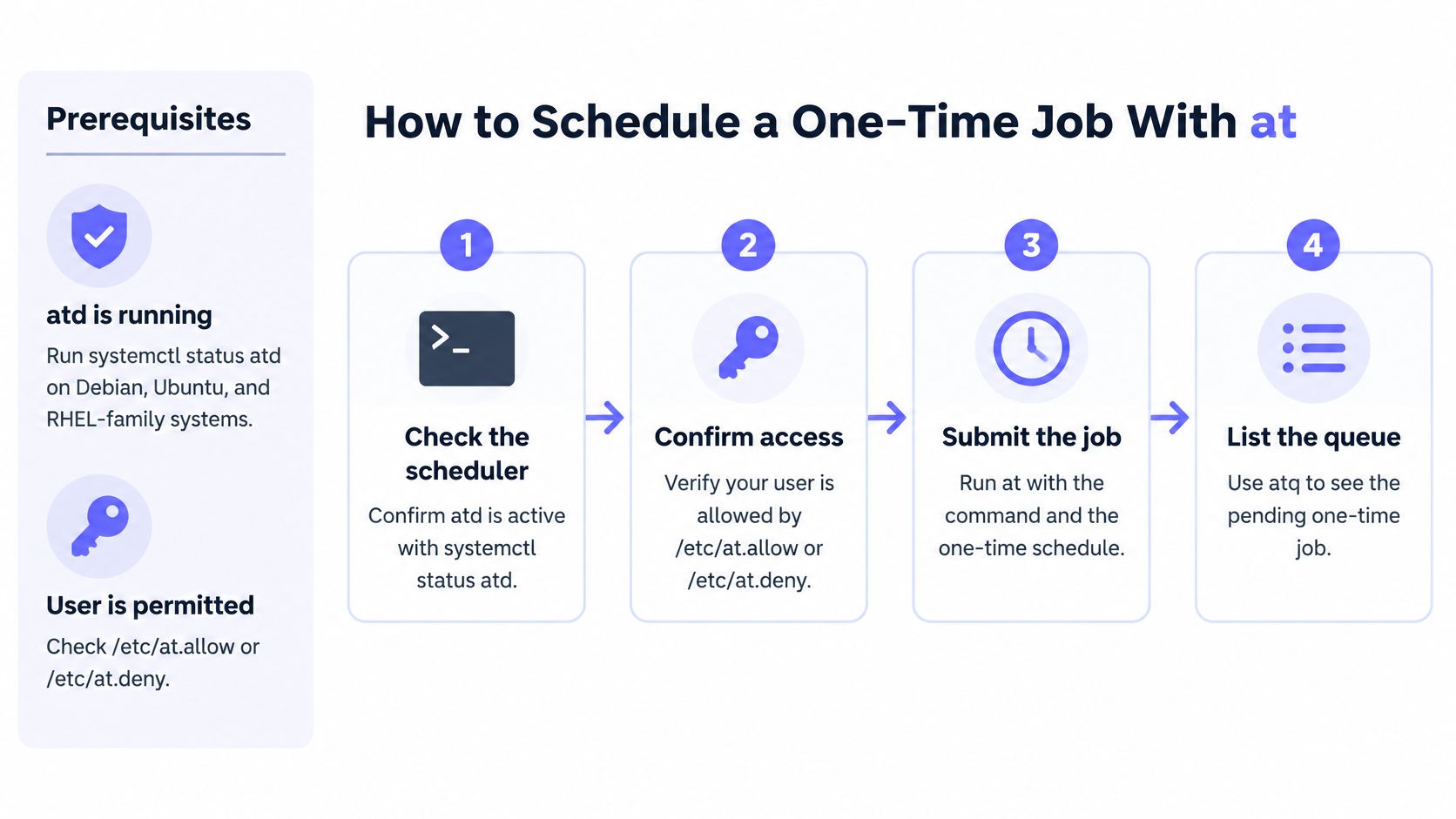
at is the tool built for this job. The POSIX at specification describes a utility that reads commands from standard input, groups them into an at-job, and executes that job later using /bin/sh, which is the semantics a single deferred execution needs.
Prerequisites come first. The atd daemon must be installed and running, checked with systemctl status atd on Debian, Ubuntu and RHEL-family hosts. The submitting user must also be permitted by /etc/at.allow or /etc/at.deny, depending on which file the distribution ships. Run everything as the account that should own the job, not as root by reflex.
- Run the script by hand first, as the target user. Use a harmless test flag if the script has one, because a manual run under the same account is the fastest way to catch a missing credential or a bad path before the schedule hides it.
- Harden the script header. Put an absolute interpreter path in the shebang, an absolute
PATHexport, and a log redirect near the top, such asexec >> /var/log/one-off-backup.log 2>&1.atjobs run under/bin/shwith a minimal environment, so anything the script expects from an interactive shell will be absent. - Submit a test job with a relative delay.
at -f /usr/local/sbin/one-off-backup.sh now + 10 minutesproves the queue, the permissions and the logging path before a real maintenance window. A test script that only writes a timestamp is a fine first attempt. - Confirm the queue entry and record the job number.
atqlists pending jobs by identifier, which is the verification step that separates a scheduled job from a job you believe you scheduled, as thisatscheduling walkthrough sets out. - Cancel rather than edit when the window moves.
atrm JOB_IDremoves a pending job before execution, so a shifted maintenance window is a clean cancel and resubmit rather than a race against the clock. - Read the log after the deadline. Look for a start timestamp, an exit status and a completion line. If any of the three is missing, treat the run as unverified rather than successful.
Validate every flag against the at manpage for the installed version, since date parsing differs between implementations, and prefer an explicit timestamp such as 23:30 2025-12-31 over a relative expression when the deadline is fixed.
Diagnose Timezone, Environment and Missed Deadlines
Start from the symptom, not the scheduler. The table maps what an operator observes after a missed deadline to the most likely cause and a read-only first check. Treat the causes as hypotheses to confirm on the host.
| Symptom | Likely cause | First check |
|---|---|---|
Job missing from atq |
atd not running, or the user is not permitted |
systemctl status atd; review /etc/at.allow and /etc/at.deny |
| Job ran but left no log | Relative path or missing PATH in the script |
Run the same command with env -i and check the script's own output |
| Job ran at an unexpected hour | Timezone mismatch between host and expectation | timedatectl; compare with the time in the job's log |
| Job ran twice | Cron line not removed after success, or no lock on retry | crontab -l; confirm flock or a run marker is in the script |
| systemd timer fired late or not at all | Host was down, or the timer was not started as expected | systemctl list-timers; journalctl -u for the unit name |
The environment row catches more operators than any other. Cron jobs do not necessarily run with the interactive shell environment an operator sees in a terminal. The POSIX crontab specification says the implementation supplies a default environment, including HOME, while implementations may inherit or define PATH. Absolute executable paths and explicitly set variables are the fix, and env -i reproduces the stripped environment closely enough to expose the gap.
When the clock is the suspect
Timezone faults look like scheduler faults. A job that "ran at the wrong hour" usually ran exactly when the host's clock said to, and the expectation was written against a different zone. If date arithmetic itself is the sticking point, the Unix date and time reference covers formatting and conversion without guessing.
When a run was simply missed
Do not assume a missed run was replayed after downtime. Check the logs for an actual execution record, and test the behavior on the distribution in use before promising a stakeholder that a missed job will catch up. A job that skipped and a job that ran late are different incidents with different follow-up.
Keep every check read-only until the cause is known. Changing the schedule to "see if that fixes it" destroys the evidence you need.
How to Run a One-Time Job With systemd-run
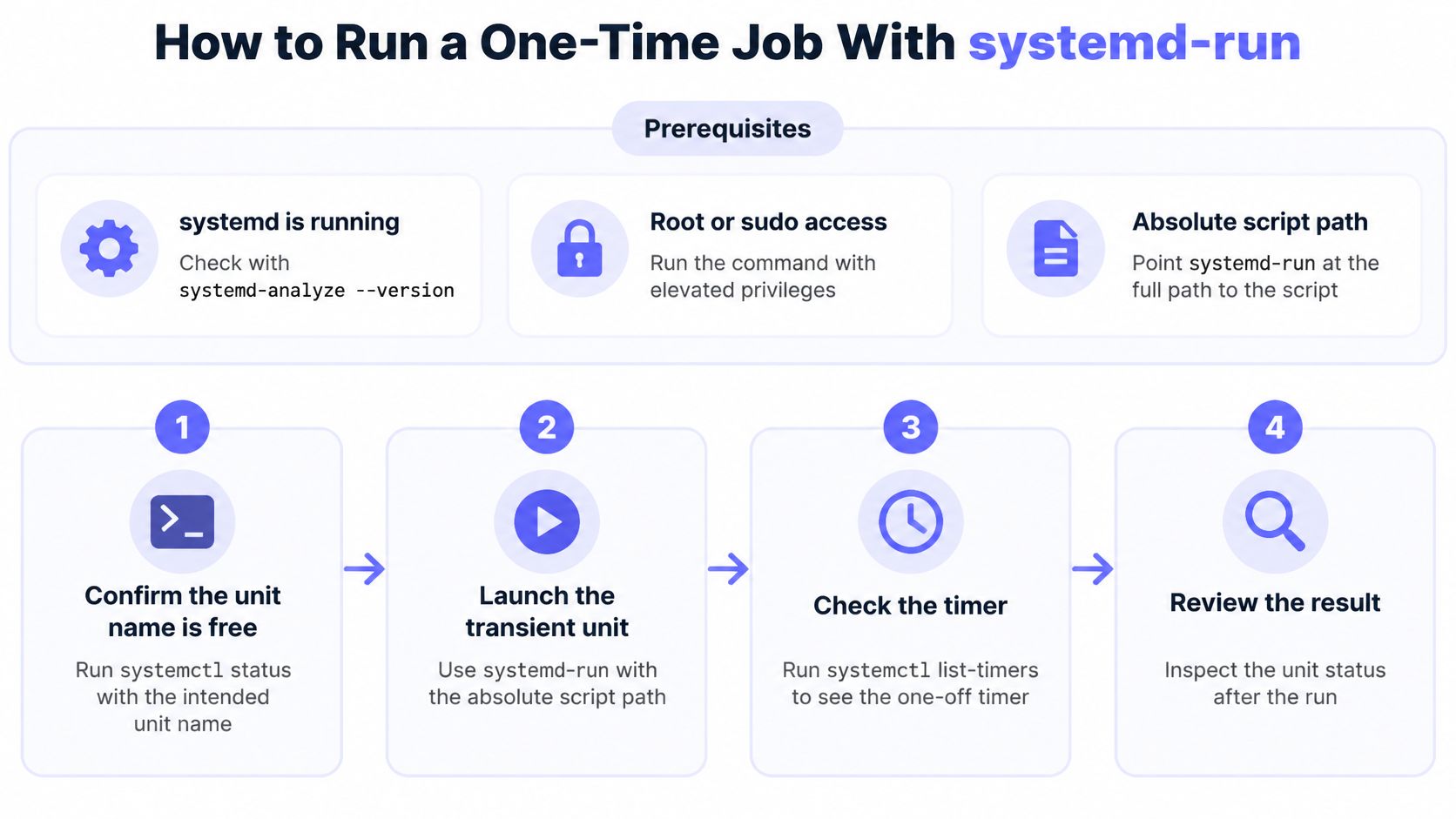
A transient timer gives a one-off command the same supervision, logging and status reporting as any other unit. The Red Hat system administration guide documents the timer model this relies on, including the persistence behavior that only applies to calendar-based timers.
Prerequisites: a host running systemd (confirm with systemd-analyze --version), root or sudo access, and a script referenced by absolute path. Check the version before trusting any flag below, since systemd-run options have grown over time.
- Confirm the unit name is free.
systemctl status one-off-check.timershould report that the unit could not be found. A name collision attaches your job to an existing unit, which is the least obvious failure in this sequence. - Launch the transient unit.
sudo systemd-run --unit=one-off-check --on-active=2h /usr/local/sbin/one-off-check.shcreates a timer and a matching service in runtime state. Use--on-calendar=instead for a fixed wall-clock time, which follows the host's local timezone. - Verify the timer is scheduled.
systemctl list-timers one-off-check.timershows the next elapse time. If the timer is absent, the command failed and the job does not exist. - Read the result after the trigger.
systemctl status one-off-check.servicegives the exit status, andjournalctl -u one-off-check.servicegives stdout and stderr without any log redirect in the script. - Clean up explicitly. If the timer has not fired and the job is cancelled, run
sudo systemctl stop one-off-check.timer. After a failed run,sudo systemctl reset-failed one-off-check.serviceclears the failed state so the unit name is reusable.
The reboot limit belongs before step two, not after it. Transient units exist only in runtime state, so a host restart before the deadline erases the schedule without warning. For a deadline that spans a reboot, write a persistent unit pair and enable the timer, or use at, which keeps its queue on disk. Persistent calendar timers record the last trigger on disk and can activate immediately when a calendar event was missed while the host was inactive, but that behavior is specific to calendar timers rather than a general guarantee for every timer type.
Here is a walkthrough of the same timer concepts in practice:
When a Temporary Cron Entry Is Justified
Cron earns its place in a narrow case: the requirement really is "run at the next matching time on this recurring schedule", the job must remove itself after success, and neither at nor a timer fits the host's policy or tooling.
The pattern is a wrapper, not a raw command. The Debian crontab manual is explicit that an entry is five time and date fields followed by a command and requires a terminating newline, and that execution context is minimal. So the wrapper does the work: it checks a marker file for idempotency, runs the workload under flock -n /run/run-once.lock, records start time, end time, exit code and a run ID, and removes its own marked line only when the exit code is zero.
An illustrative, untested entry:
30 2 * * * flock -n /run/run-once.lock /usr/local/sbin/run-once.sh >>/var/log/run-once.log 2>&1 # one-off:backup-check
Cleanup follows a fixed order. Back up with crontab -l > /root/crontab.bak, then delete only lines carrying the one-off:backup-check marker, and never crontab -r. If the wrapper fails, leave the line in place for review or a deliberate retry rather than removing the schedule and losing the record of intent.
The rule that keeps this safe: the schedule outlives the failure. A line that stays too long is a nuisance; a line removed too early is an outage nobody notices.
Absolute paths are mandatory because cron's environment is stripped. Confirm CRON_TZ support in the installed implementation before leaning on it, and check the daemon's own log if the entry seems never to fire, as covered in cron jobs not running.
Confirm Each Run Before You Close the Ticket
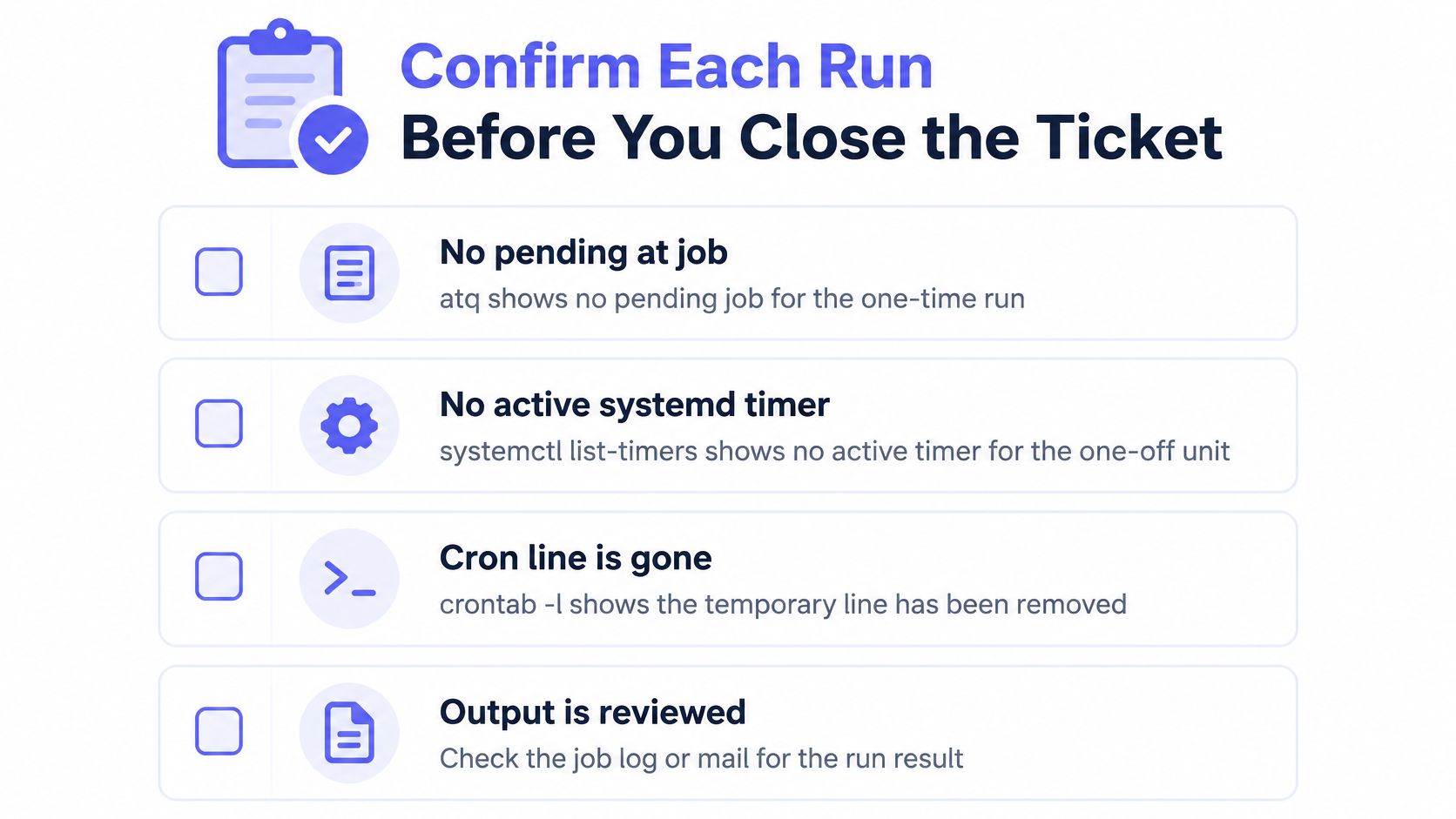
The deadline passing is not the finish line. Work through the following after the scheduled time.
- Scheduler state is clean.
atqshows no pending job for the one-time run,systemctl list-timersshows no active timer for the one-off unit, andcrontab -lshows the marked line is gone. - The result is verified, not just the start. The log contains a start time, an end time, exit status 0 and a run ID, and the expected output passes a check the workload defines, such as a row count, a checksum or a file timestamp.
- A missed run is recorded. Decide whether to rerun by hand, note why, and fix the cause rather than the symptom.
- The artifact exists. The log file has restrictive permissions and survives the next rotation, which is where the cron job log guide helps.
Fivenines monitors scheduled jobs and sends alerts when jobs miss a run or finish late. A recurring check does not automatically model a single deadline, though, so read the cron job monitoring feature page and confirm whether its model fits a one-shot requirement before depending on it. A sensible first test is one non-production job with an intentionally missed run, to see what the alert says and when.
For recurring jobs already in place, the next step is checking cron jobs so a silent failure becomes a ticket rather than a surprise.
Running a command exactly once is a scheduling decision, not a syntax trick. Choose at for a known timestamp, systemd-run when you want the run visible in the journal, and a temporary cron entry only when the schedule must recur until something removes it. Whichever you pick, keep a verification step that proves the workload finished rather than merely started. Fivenines brings cron job monitoring, server metrics, uptime checks and alert workflows into one hosted platform, so a missed run or a late finish can surface as an alert instead of a discovery made days later. Visit Fivenines to connect one host, schedule a single test job and confirm the alert fires before you rely on it for production work.