Cron Job Every 30 Minutes: Setup, Verify, and Monitor

A lot of teams land on the same task list at some point. Something needs to sync, clean up, refresh, poll, or verify often enough that hourly feels stale, but every minute would be noisy, wasteful, or hard on the host. That's where a cron job every 30 minutes usually enters the conversation.
The string is simple. Production behavior isn't. The half-hour schedule sits right in the middle of “frequent enough to matter” and “infrequent enough to hide failures,” which is why these jobs often break. The issues usually aren't the five fields in crontab. They're overlap, timezone surprises, skipped runs after reboots, and the fact that cron won't chase a teammate down when a job stops firing.
Table of Contents
- Why Every 30 Minutes Is a Common Cron Cadence
- Writing the Crontab Entry the Safe Way
- Choosing the Right 30-Minute Schedule Form
- Verifying the Job Actually Runs
- Designing Around Missed Runs and DST Shifts
- Monitoring Cron Success and Failure
- Your 30-Minute Cron Setup Checklist
Why Every 30 Minutes Is a Common Cron Cadence
Half-hour scheduling shows up everywhere in operations. Teams use it for cache warmups, lightweight health checks, queue polling, dashboard refreshes, cleanup scripts, and data syncs that shouldn't wait a full hour but also don't need per-minute churn.
The canonical cron expression is */30 * * * *. In standard cron syntax, that means “match every minute divisible by 30 in every hour.” In practice, it runs at minute 0 and minute 30, which means twice per hour and 48 times per day according to UptimeRobot's cron reference. Equivalent forms include 0,30 * * * * and 0-59/30 * * * * in that same reference.
Why this cadence lands in the sweet spot
A half-hour cadence is usually easier to justify than the nearby alternatives:
*/15 * * * *can be too chatty for tasks that touch APIs, storage, or large working sets.0 * * * *is often too slow for inventory updates, report freshness, or low-latency housekeeping.*/30 * * * *hits predictable wall-clock boundaries, which makes it easier to reason about logs and expected runtimes.
Practical rule: If a task matters enough that someone will ask whether it ran recently, but not enough to justify minute-level execution, half-hour cron is often the first sane default.
The useful part here isn't just frequency. It's alignment. A wall-clock schedule that lands on :00 and :30 is easy to verify against logs, dashboards, and handoffs. That predictability is why the pattern keeps showing up in real systems.
The easy part ends there. The tricky part is making sure the job behaves correctly when the host is down, the script runs long, or the local clock shifts underneath it.
Writing the Crontab Entry the Safe Way
The safest workflow starts with the right user context. Edit the crontab for the account that should run the command, usually with sudo crontab -e -u appuser for an application account or sudo crontab -e for root-owned maintenance. Avoid building a temp file and piping it in unless there's a strong reason. Direct editing is harder to botch.
Near the top of the crontab, set a predictable shell and path. Cron doesn't load the same environment an interactive login shell gets, so commands that work fine over SSH often fail under cron because PATH, HOME, or shell behavior isn't what the script expects.
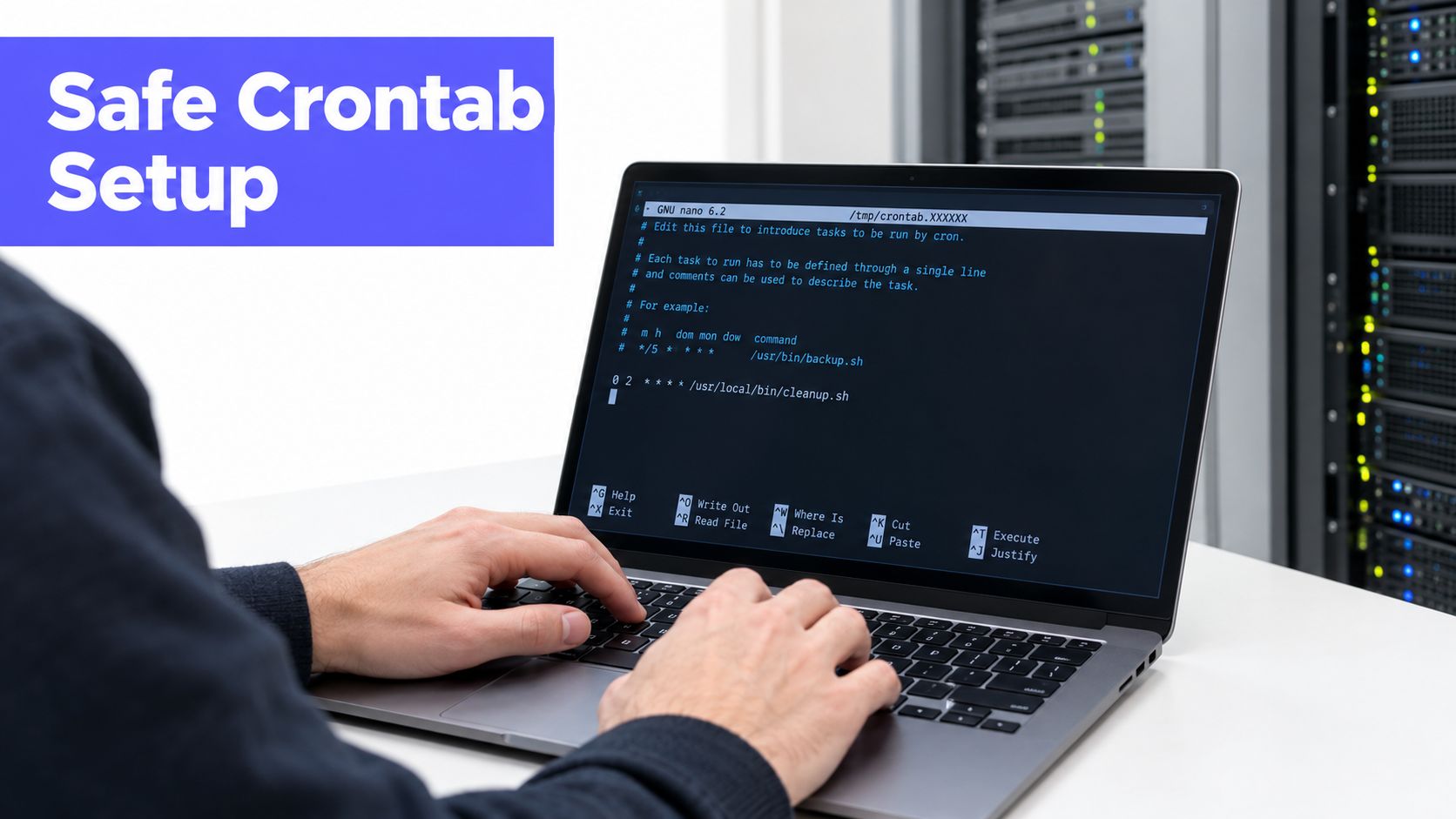
A clean starting pattern looks like this:
- Set the shell explicitly:
SHELL=/bin/bash - Set a conservative path:
PATH=/usr/local/sbin:/usr/local/bin:/usr/sbin:/usr/bin:/sbin:/bin - Use absolute paths everywhere:
/usr/bin/awsis safer thanaws - Redirect output intentionally: don't let success and failure disappear into nowhere
A realistic entry
For a sync job, a safer half-hour entry might look like this:
*/30 * * * * /usr/bin/flock -n /var/lock/app-sync.lock /usr/bin/aws s3 sync /srv/app/data s3://example-bucket/data >> /var/log/app/sync-\$(date +\%Y\%m\%d).log 2>&1
That line does a few things right:
flock -nprevents overlap if the previous run is still going.- The binary path is absolute, which avoids
PATHsurprises. - Output goes to a dated log file, so there's somewhere to inspect failures.
- The
%characters are escaped because unescaped%has special meaning in cron.
For system-owned jobs that need versionable files, /etc/cron.d/ is often cleaner than a user crontab. It makes ownership and deployment more explicit. Just remember that entries there include an extra field for the username that should execute the command.
A related operational pattern shows up outside cron too. Any workflow that depends on timing and reputation, such as new domain trust building for B2B, benefits from explicit scheduling, logs, and guardrails instead of “set it and hope.”
Common mistakes that waste time
A few gotchas account for a lot of failed half-hour jobs:
- Interactive shell assumptions: aliases, profile exports, and language version managers often aren't loaded.
- Missing newline at end of file: some cron implementations are picky about it.
- Wrong crontab format:
/etc/crontaband files under/etc/cron.d/require the username field. User crontabs don't. - Unquoted variables: spaces in paths or unexpected values can break a command line badly.
Later, when the job is ready for a higher-reliability host, this walkthrough gives a useful visual reference for editor flow and syntax review.
Choosing the Right 30-Minute Schedule Form
Not every half-hour schedule means the same thing operationally. The syntax may look equivalent at first glance, but the scheduler underneath decides what “every 30 minutes” really means.
The three forms people compare are standard cron step syntax, explicit minute lists, and a systemd timer.
What each form communicates
*/30 * * * * is the familiar default. It's concise and readable once a team already knows cron notation.
0,30 * * * * says the same thing with less interpretation. In code review, some teams prefer it because “run at minute zero and thirty” is obvious at a glance.
OnCalendar=*:0/30 in a systemd timer preserves the wall-clock half-hour schedule. That matters because a relative timer behaves differently. As noted in a Stack Overflow explanation of cron and systemd timer behavior, OnUnitActiveSec=30m means 30 minutes after the last activation, while OnCalendar=*:0/30 preserves the fixed half-hour boundaries.
Cron vs Systemd Timer for 30-Minute Jobs
| Schedule Form | Scheduler | Missed-Run Handling | Best For |
|---|---|---|---|
*/30 * * * * |
cron | Missed runs aren't replayed automatically | Legacy Linux hosts and straightforward recurring jobs |
0,30 * * * * |
cron | Missed runs aren't replayed automatically | Teams that want explicit minute values in reviews |
OnCalendar=*:0/30 |
systemd timer | Can be paired with persistence features for catch-up behavior | Newer deployments that need stronger service semantics |
For teams that want to validate syntax before rollout, a cron expression generator is useful for quickly checking the final five-field string.
Use
*/30in crontab when the host already runs cron and the job can tolerate a missed boundary. Use a systemd timer when missed-run recovery and service-style management matter more than compatibility.
The recommendation is simple. Stick with cron for normal admin tasks on established hosts. Move the job to a systemd timer if catch-up behavior, service state, or tighter operational control is a requirement rather than a wish.
Verifying the Job Actually Runs
A saved crontab line proves only one thing. The editor exited cleanly. It doesn't prove the command can run in cron's environment, write where it should, or fire when expected.
Start with the loaded entry
First, list what cron has:
- Check the installed lines:
crontab -l - Confirm the exact command path: look for typos, wrong users, and bad redirection
- Inspect special variables:
SHELL,PATH, andMAILTOif they're set
Then run the command manually as the same user cron will use. That exposes missing environment variables faster than waiting for the next boundary. If the command needs a working directory, locale, credentials file, or writable log path, that manual test will usually show it.
A simple heartbeat command is also worth using before the script goes live:
*/30 * * * * echo "$(date) fired" >> /var/log/cron-test.log 2>&1
That gives a low-risk trace at the next expected boundary. For a deeper walkthrough on where cron output lands and how to read it, this cron job log guide is handy.
Check the scheduler logs
Once the boundary passes, confirm cron itself invoked the entry:
- Debian and Ubuntu families:
grep CRON /var/log/syslog - RHEL-family systems:
journalctl -u crond -f
What matters here is separation of concerns. The scheduler log shows whether cron launched the command. The job log shows whether the command succeeded.
A command that works in a shell but fails in cron usually points to environment drift, not bad timing syntax.
For a fast confidence check, temporarily switch the schedule to */1 * * * *, watch a live run, then restore the half-hour cadence. That test catches bad paths, permission errors, and silent output problems before the production window matters.
Designing Around Missed Runs and DST Shifts
Half-hour jobs fail in a few predictable ways. The script runs longer than expected and starts overlapping itself. The host is down at the boundary and the run never happens. Then daylight saving time arrives and the clock does something the runbook forgot to mention.
A standard cron expression like */30 * * * * is clock-aligned, not interval-based, so it fires at minute 0 and 30, for 48 executions per day, and missed runs aren't replayed if the host is down according to Crontap's explanation of every-30-minute cron behavior. That's why the script itself needs to be tolerant of gaps.
Design for overlap and partial work
Jobs on a half-hour cadence should be written so that a rerun doesn't corrupt state or duplicate work. The usual controls are simple:
- Lock the job:
flockor a lockfile under/var/lock - Make writes idempotent: sync current state, don't append blind duplicates
- Exit non-zero on real failures: cron can't help if the script hides errors behind
|| true
That's also why teams should treat “every 30 minutes” as a delivery target, not a guarantee of exact elapsed spacing.
Timezones and DST aren't trivia
Timezone handling is where “portable cron syntax” stops being portable in practice. As described in this cron timezone and DST handling guide, cron is usually evaluated against the server's local clock unless a timezone is explicitly configured, and DST behavior varies by implementation. The same guide notes that fixed local business-hour schedules can drift away from the intended window when the UTC equivalent changes across DST boundaries.
For globally distributed systems, timedatectl should be part of the checklist. If a service fans out across regions, UTC is usually the least surprising default. If the job must follow local business hours, the timezone needs to be declared explicitly and tested on the scheduler that will run it.
A useful companion for validating the host clock and shell-side time handling is this Unix date and time reference.
Monitoring Cron Success and Failure
Cron is quiet by design. That's fine for simple maintenance work. It's a bad fit for anything business-critical unless the job reports its own outcome.
Start with log discipline
At minimum, the command should append both stdout and stderr to a dedicated log:
- Capture both streams:
>> /var/log/myjob.log 2>&1 - Add timestamps in the script: each line should say when it happened
- Preserve exit status: store
$?and log failures explicitly
A wrapper pattern keeps this sane:
- Run the actual command
- Save
rc=$? - If the code is non-zero, write a failure line and exit with that same code
That gives operators something much better than “it probably ran.”
Add a heartbeat instead of grepping forever
For jobs that matter, a heartbeat is lighter than full observability and far more reliable than occasional log checks. The script touches a file or sends a ping only after successful completion. A separate monitor checks whether that signal arrived on time.
That's where purpose-built cron tracking helps. One option is Fivenines cron job monitoring, which tracks scheduled task execution by expected cadence and can surface missed or late runs tied to the job outcome instead of forcing operators to infer health from scattered logs.
Silent failure is the normal failure mode for cron. Monitoring should assume the job can stop, stall, or skip without announcing itself.
Rolling a homegrown watcher is still valid for small estates. A second cron job can check heartbeat age and send mail or push to chat when it goes stale. The trade-off is maintenance. Someone still has to keep the alerting path healthy, rotate the logs, and make sure the checker itself isn't failing too.
Your 30-Minute Cron Setup Checklist
A reliable cron job every 30 minutes usually comes down to a short list of decisions made carefully.
The six checks worth doing every time
Confirm the user context
Install the job under the account that already has the right permissions, credentials, and file ownership.Check the timezone
Verify the server clock before choosing wall-clock scheduling. If the task follows one region's business hours, make that explicit.Set the environment
DefineSHELLandPATHat the top of the crontab. Use absolute paths for binaries and scripts.Write the entry safely
Usecrontab -e, prefer*/30 * * * *or0,30 * * * *, escape%, and redirect output to a real log.Test execution manually
Run the command as the cron user and confirm it behaves without an interactive shell.Verify and monitor
Check the scheduler logs, confirm the next boundary fires, and add a heartbeat or task monitor so missed runs don't stay invisible.
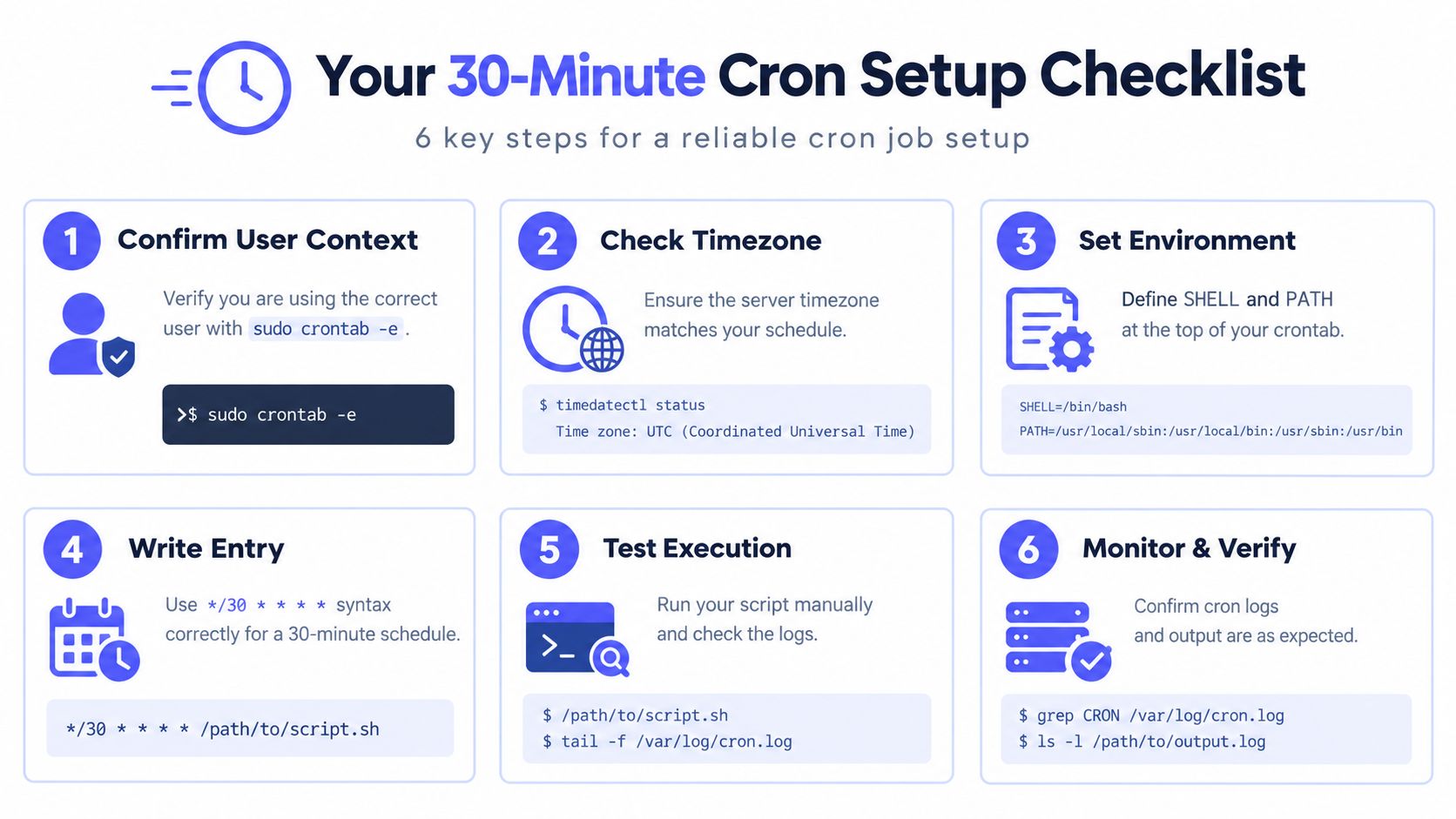
The pattern is simple. The discipline around it matters more than the pattern itself. A half-hour job should have clear ownership, controlled overlap, visible output, and a way to prove it completed.
Fivenines gives teams one place to watch cron jobs alongside server metrics, uptime checks, and infrastructure health. For a half-hour task that can't fail without notice, it's a practical way to track expected runs and spot missed executions without building a separate watchdog stack. Visit Fivenines to see how it fits into a production cron workflow.