Windows Server Monitoring Without the SCOM Setup
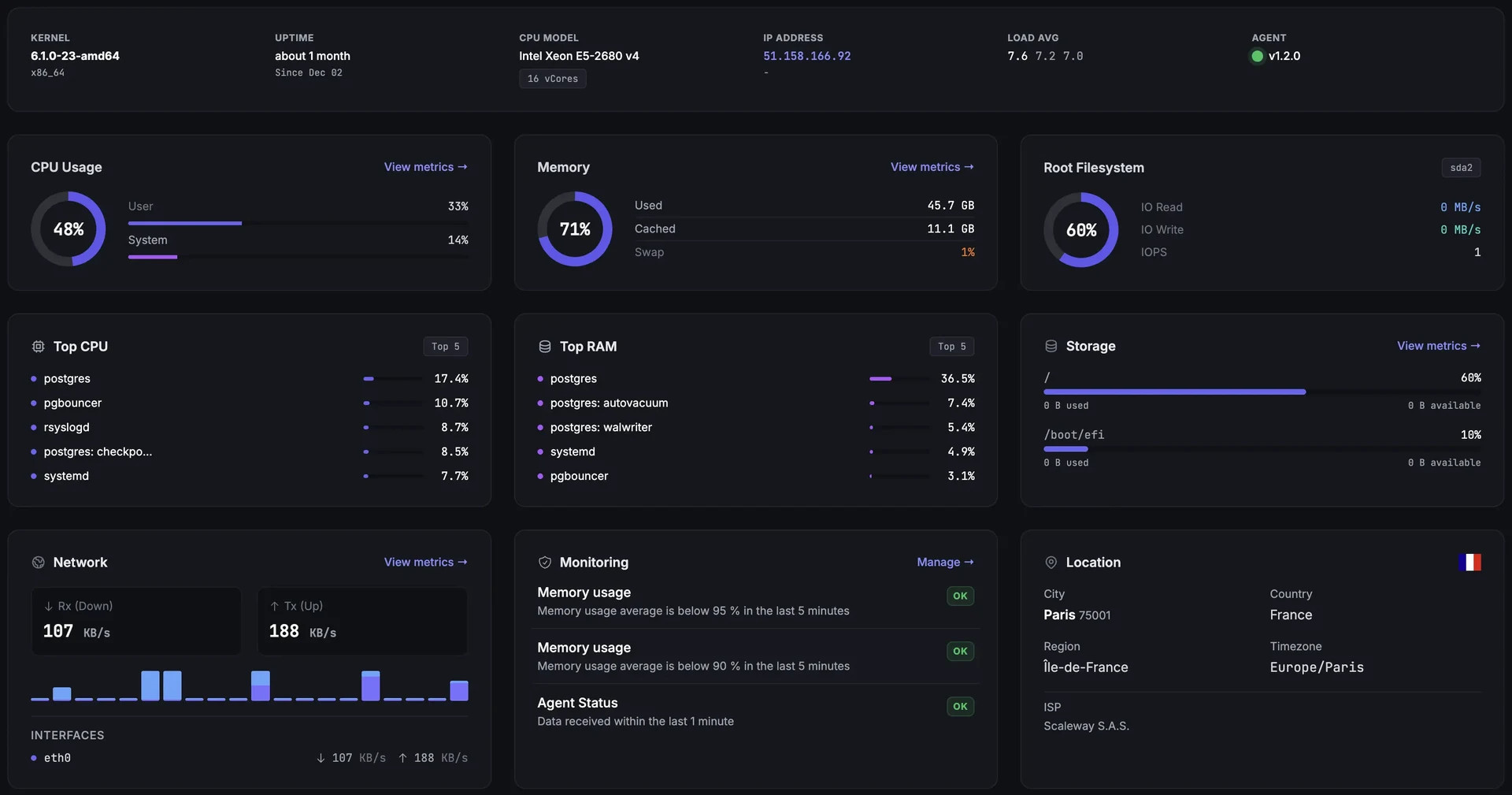
CPU, memory, disk, network, services and process metrics on every Windows Server. A lightweight agent installs in one PowerShell command. No System Center deployment, no per-sensor PRTG licensing.
Built for teams monitoring production infrastructure
No credit card · 2-minute setup
-
PowerShell one-line install
A single PowerShell command sets up the agent, registers the host and starts pushing metrics. An MSI installer is available for Group Policy, SCCM or Intune-driven rollouts.
-
Native Windows metrics
CPU, memory, page file, per-volume disk usage and I/O, per-interface network counters, services state and the top processes by resource use. Windows-specific signals, not Linux metrics renamed.
-
Same platform, same alerts
Windows hosts sit in the same dashboard as your Linux servers, network devices and uptime checks. One pricing plan, one alert routing layer, one place to look during an incident.
Deep dive
Service and process monitoring
Track which Windows services are running, stopped or in a failed state. Get alerted the moment a critical service (the SQL Server engine, the IIS worker process, the print spooler you actually use) stops or fails to restart. Per-process CPU and memory let you spot the runaway PowerShell job or the .NET worker eating the box, rather than guessing from a CPU spike at the host level.
Deep dive
Alerting that actually works
Set per-host thresholds on any metric: CPU sustained over 90%, page file pressure, free space under 10% on C:, network drops, a specific service entering Stopped state. Alerts ship via email, Slack, Microsoft Teams, Telegram, Discord, Pushover, PagerDuty or webhooks, depending on plan.
Workflows handle the noisy parts: rechecks before paging, mute windows during patch nights, and escalation paths for the alerts that genuinely matter at 3 AM.
Common Windows Server Monitoring Scenarios
Mixed Linux and Windows fleet
Run web tier on Linux, file servers and a domain controller on Windows. Both worlds report into the same dashboard, alert into the same Slack channel, and answer the same on-call rotation.
MSP supporting SMB clients
Most small-business clients still run a Windows file server, a database server and a few line-of-business apps. Group hosts by client, publish white-label status pages, and stop logging into each customer's RDP to check disk space.
Legacy app on Windows Server
That one application you can't migrate yet still needs eyes on it. CPU, RAM, disk and the three Windows services it depends on, alerted before users notice.
How It Compares
| Approach | Setup Time | Windows Metrics | Services & Processes | Alerting | Retention |
|---|---|---|---|---|---|
| Performance Monitor / Task Manager | 0 min | Live only | Live only | ||
| SCOM (System Center) | Hours / days | Configurable | |||
| PRTG | 30+ min | Per-sensor cost | |||
| Datadog | 30+ min | Agent-based | Expensive at scale | ||
| Fivenines | 2 min | Native agent | Built-in | Built-in | 24 months |
Setup takes one command
$ iwr -UseBasicParsing https://releases.fivenines.io/latest/fivenines_setup.ps1 -OutFile $env:TEMP\fivenines_setup.ps1; & $env:TEMP\fivenines_setup.ps1 -Token YOUR_TOKEN
✓ Downloading fivenines_setup.ps1 from releases.fivenines.io...
✓ Installed to C:\Program Files\Fivenines\. Service started. Metrics flowing in 60 seconds.
Run the command in an elevated PowerShell session. The setup wizard generates it with your enrollment token already embedded. The agent installs to C:\Program Files\Fivenines\, registers as a Windows service that auto-starts on reboot, and starts pushing metrics within 60 seconds.
For domain-joined environments and bulk rollouts, an MSI installer is available from the same release URL and works with Group Policy, SCCM and Intune. The MSI is not code-signed yet, so SmartScreen may warn on first run - Azure Trusted Signing is on the roadmap.
The agent runs as a dedicated fivenines-agent local service account, uses outbound HTTPS only, and does not require an inbound port or remote command channel. See the agent security model for the full permissions and data-collected breakdown.
Frequently Asked Questions
Which Windows versions does Fivenines support? +
How does the Windows agent install? +
Does the agent run as LocalSystem or a domain account? +
Does the agent open an inbound port on my Windows server? +
What Windows metrics does Fivenines collect by default? +
Can I monitor Windows services and get alerted when one stops? +
Is the Windows agent signed? +
Can I monitor both Linux and Windows servers in the same account? +
Explore next
Related Features
Linux Server Monitoring
Same agent-based approach across Ubuntu, Debian, Rocky, Alma, Arch, CloudLinux and CentOS.
Explore ->Server Alerts
Route Windows alerts to email, Slack, Teams, Telegram, Discord, Pushover, PagerDuty or webhooks.
Explore ->Uptime Monitoring
HTTPS, TCP, ICMP and DNS checks for the services your Windows servers expose.
Explore ->Network Device Monitoring
SNMP monitoring for switches, routers and firewalls sitting next to your Windows hosts.
Explore ->See how Fivenines compares to other tools
Read our guide to the best infrastructure monitoring tools in 2026.
Start monitoring your Windows servers in 2 minutes
14-day trial. No credit card required.
No credit card · 2-minute setup · Cancel anytime